

Here’s a little trick that can come in handy when you are building Account Engagement native forms. The form’s data type and input method does not have to match its Salesforce (or even the Account Engagement) counterpart. Said another way, the form’s field options are completely flexible and you can use them to suit your present purpose.
Here’s a quick example:
Let’s suppose you have a Salesforce dropdown field for industry. And it has dozens of values in it. But you are doing a very targeted campaign aimed at only a few of those industries. Since the form in independent of the field, don’t load the default data for the dropdown, just configure the dropdown to have only the few options you want.
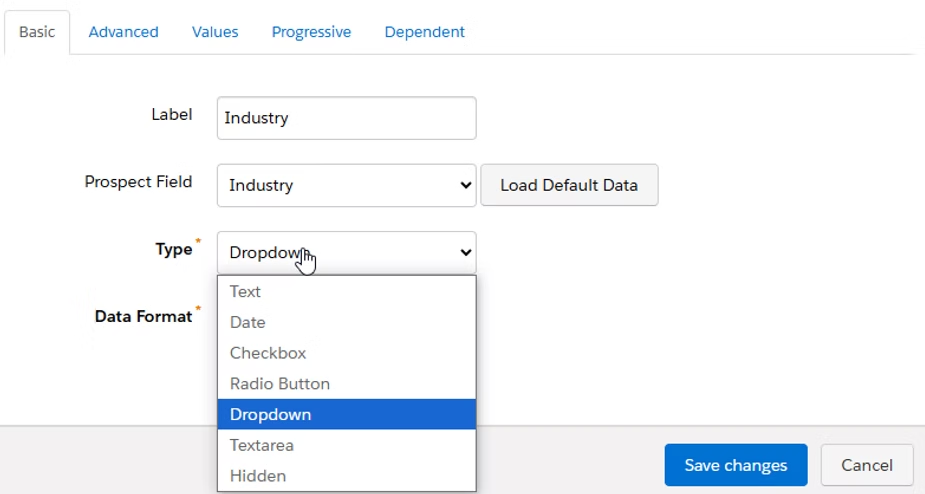
Now that might seem intuitive because the field is the same type (dropdown). But what if you only had 2 options? Then use a radio button for the input with option 1 or 2. It will work the same way. Even though both the Salesforce and Account Engagement fields are dropdowns, the way you enter the data does not have to be. Or consider it in the reverse– the field is text but you want to restrict the inputs to values you define. So use a picklist on your form even though the field is not a picklist.
Here’s another example- what if you have a multiselect picklist in Salesforce (horrors, I know!). How do you allow a multiselect picklist in a form? Use Checkboxes instead of a dropdown. Checkboxes in Account Engagement have multi-select behavior (allows more than 1 thing to be selected in the same input), so you can use that input to populate a multiselect picklist.
You can also use the number input type to populate a text field if the input you needed at that moment was a number.
Now that you know this little trick, I bet you can think of a lot of ways it can come in handy!